|

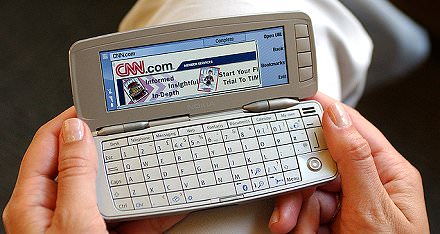
Top Nokia 9300 tips - Things every
smartphone owner should know
Revised November
2005
|
- Stay away from those 'Exit' buttons!
The
whole point of buying a Symbian OS smartphone like the 9300 is that its
multitasking lets you keep loads of things running at once. Starting up
applications takes three seconds a time, so you don't want to be doing this too
often. Make sure you don't keep closing programs down with 'Exit' (unless
you're sure you're not going to need them again). Instead, simply use the
left-hand menu card to switch to another running program or use the main
application shortcut keys or press 'Desk' and choose a new one.
- Buy big
Get the largest memory card that you
can comfortably afford. When manipulating very large files (e.g. short video
clips), it's helpful to get yourself a USB card reader/writer, so that you can
copy things onto card directly from your desktop computer. DON'T get a 2GB MMC
card, by the way, as there are many issues with the 9500 trying to use
these.
- Faster Documents
Word/Documents on the 9300
has (nearly) the same keystroke combinations as Word on the Psion palmtops that
we've all grown up with. You can speed around your documents with: 'Chr' plus
'nav-left' = Home; 'Chr' plus 'nav-right' = End; 'Chr' plus 'nav-up' = Page up;
'Chr' plus 'nav-down' = Page down; 'Ctrl' plus 'Chr' plus 'nav-up' = Top of
document, and so on.
- Office speed
Whether you've received a
Microsoft Office file by email or perhaps copied it onto your communicator
using PC Suite, it's often best to work using Symbian OS's native Word and
Sheet formats rather than having to wait every single time you open, save (e.g.
when switching away to another app) or close an Office file. To save a file in
native format, use the 'epoc/app' option in the 'Save as' dialog.
And, of
course, if you're creating a new document, start in native (EPOC) format and
then it'll be converted when dragging and dropping back to your PC (or you can
re-save it manually).
- Background email
Never, ever forget that this
Symbian OS is a powerful multi-tasking Operating System. Here's a terrific
example. Why not grab your email in the background? In Messaging (properly set
up, I hope, with messages below a certain size being downloaded in full and
with others just retrieved as headers), press 'Retrieve e-mail' and then close
the 9300 up. That's right, you heard right. Close it up, the screen goes off,
and so on, and you get on with your life (running for the bus, nipping to the
loo, etc). When convenient, a few minutes later, open up the smartphone and
you'll see everything fetched as-per-your-instructions and ready to read. How
cool is that? And who needs the hassle and expense of 'push' email when the
9300 make email so easy?
Even better, try my freeware Automail, which automates this.
- Whole day at once
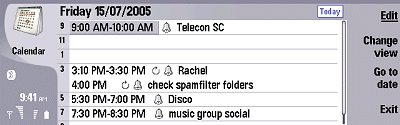
Calendar on the Nokia 9300
has a pretty unusable Day view, with lots of up and down scrolling needed by
default to see appointments at both ends of the day, meaning that some will get
missed. Go to 'View' 'View settings' and change 'Time slot allocation' to the
maximum of '2 hours'. You can now fit a whole day's activity on a single
screen!
- Double the music
Up 'til now, you've probably
been using MP3 for all your music needs. If, like, millions of others across
the world, you switch to using the public domain Ogg Vorbis format instead, you
can double the amount of music on your smartphone with no loss in quality!
Here's how.
- Surf big
The rebadged Opera in the Nokia 9300
needs a lot of RAM to work in. Luckily the 9300's got quite a bit. But it also
needs a reasonable size disk cache, so go into 'Settings' and set 'Maximum
cache size' to something large, like 2000 or 3000kB. Remember, this is only
coming out of the enormous 80MB internal flash disk, so you won't miss it.
Another good tip is, on the 'Services' tab, to set 'Enable Javascript' to
'No'.

- DATA, but not as you know it
For those
upgrading from a Psion Series 3 or Series 5/Revo palmtop, the absence of DATA
(or even Jotter) is a blow. Quite apart from names and addresses (which are now
in Contacts, of course), DATA was always very good for jotting down fairly
free-form sets of information, reference info that you wanted to look up later
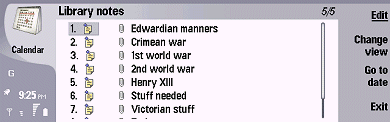
on. On the 9300, you have to think laterally - there IS a database in ROM. It's
called Calendar, it's based on the same underlying engine as the old DATA app
and it's fully synced to Outlook whenever you like. Now, why not create a few
new To-do lists to do the work of DATA? For each entry, use the To-do title as
your title field, obviously, then use the freeform Note page as your main
working area. The only snag is that the Calendar Find function doesn't search
within To-do Notes, even when you tell it do so under 'Find | Options'
(probably a bug), though finding text within an entry title works OK. Still,
it's free, it's built-in and it's a lot better than nothing!
After writing the tip above (Feb 2005), Yellow
Computing have released
YData,
still in its early days and buggy (email them any bugs you find) but very much
keeping the spirit of Psion Data alive.
- Reclaiming Megabytes
Every time you install a
third party program, the full SIS file hangs around the root of your internal
disk, wasting space. Have a look now with File manager - I'll bet you can clear
out a few Megabytes at least by deleting these leftover files.
- Always grab the latest PC Suite
You might
think that the version of PC Suite shipped with your Nokia 9300 is quite
adequate and that any versions posted online will be simple bug fixes - but
you'd be wrong.. Nokia has been adding all sorts of handy features (and many
bug fixes, yes) to PC Suite and the latest v6.6 (at 30th Sept 2005) comes
highly, highly recommended. Auto-archiving of your photos and videos, and
better synchronisation are just two of the main benefits.
- File manager, the new System screen
If you're
not using File manager every day, then you're not getting the most out of your
9300 smartphone. It's that important, and it's a bit like the old Psion Series
5 System screen. Unlike many other PDA environments, where you're not concerned
with where files 'live', you can make your own folders and put what you like in
them, effectively grouping all types of files by theme rather than by type. A
common example might be a project that you're working on, which might involve a
couple of spreadsheets, five or six Word files, a custom OPL calculator and
several folders of images. All of these can be stored in a single root folder
with an appropriate name, e.g. 'ProjectX'. And File manager is your way into
these folders, you simply press Enter on a file to launch it in its associated
application. If long filenames mean that you can't identify each one in the
narrow default view, highlight the folder name and press the 'Open' toolbar
button for a much better view.
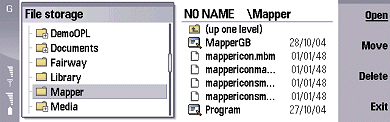
One final File
manager tip - go into Settings and enable viewing of the \System folder. You'll
need to know about this for the future, trust me.
- Keep things safe!
You can use the supplied
Zip Manager (on CD with the 9300) to create a great encrypted document system
that's also compatible with your desktop PC. For example, keep that
confidential spreadsheet or Word file of passwords safely hidden from prying
eyes. For full details, see my Secret Safe
article.
(Epocware have now released a commercial desktop-Communicator
secure database system,
Handy
Safe, recommended)
- Be patient
The Nokia 9300 series doesn't have
the speediest processor in the world (which partly accounts for its outstanding
battery life). And the multi-tasking Symbian operating system often gets it
into its head to do lots of things at once. For example, you close a Sheet file
and return to Desk, then get frustrated because your next keypress takes a
moment or two to get recognised. Behind the scenes, Symbian OS is saving your
file, tidying up the smartphone's memory, checking for alarms and other
scheduled events, etc. So don't get impatient - work with the 9300 and
not against it. Don't think that everything has to happen instantaneously just
because there's no 'hourglass', a là Windows!
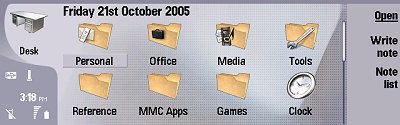
- Desk matters
With Nokia (and Symbian)
amalgamating the 9210’s Desk and Extras to form the all-inclusive Desk on
the 9300, there’s the potential to either get confused or to not use the
interface to its fullest potential. It’s also important to make the most
of the 9300’s RAM and good multi-tasking. As with applications in general,
when navigating around your Desk ‘groups’, don’t keep using
‘Exit’ on the toolbar. Leave each one open and simply press Desk
again.
Make sure you make the new system of Desk groups work for you by
creating your own. Use the ‘New group’ menu command. Once created, it
will be one of the group options shown when you install new software.
- Just forget them
When selecting recipients in
Messaging, it calls up your Contacts list. The trouble is, the filtering of
your contacts takes quite a while, which is frustrating. Tempting though it is
to have your entire company directory (1000s of people) loaded in Contacts,
Messaging will thank you to keep the number down (say a few hundred, i.e. the
people you actually know). If you must keep the company phone directory on
hand, use a different tool, such as
Power Data
4.0.
Make sure you keep all 'Advanced search' fields set to 'No',
otherwise your Contacts searches will take three times longer than they need
to. If you really want to search for something in one of the other fields, turn
them on in 'Advanced search', search away and then remember to turn them off
again afterwards.
- Archiving emails
Still on the subject of
Messaging, you'll know already that this just shows you what's currently in
your remote mailbox. There's no inherent concept of archiving important emails,
this is left as something to do on the desktop PC. But you can still keep your
own mini-archive by creating a 'New folder' in the 'Root' folder, perhaps
calling it 'Archive' and 'Copy'ing any or all downloaded messages from
mailboxes into this new folder.
For really serious archiving (hundreds of
SMS/emails), use Symbianware's
MessageStorer.
- Not just apps!
It’s very important to
note that you can put in Desk shortcuts to all sorts of things. Compiled OPL
programs, Word or Sheet documents, TomeRaider databases, Notes, and so on. If
you don’t like the icon given, change it with
‘Ctrl’+’P’.
- Multiple groups
Commonly used applications
(such as File manager or Clock) can be added to groups as many times as you
like, perhaps once in each Desk group. Thus, whichever one you happen to be in,
your favourites are never more than few keypresses away. Highlight the
application icon and use ‘Show in groups’ on the Desk menu.
- Lock it!
Something that's not obvious at
first is how to lock the outside of the smartphone, i.e. to lock the keys on
the phone side to prevent accidental calls. In fact, it's 'Menu' and then '*'.
So now you know. In fact, you can leave your 9300 locked most of the time, as
opening up the unit reveals business as usual and you can always initiate calls
from the Telephone or Contacts application. This leaves the front panel buttons
for receiving calls and acknowledging alarms and messages, etc.
- Communicate!
Make the most of your infrared
and Bluetooth ports - the 9300 can talk to almost anything, from desktops to
camera to other PDAs. And where infrared or Bluetooth aren't possible, you can
usually pass files along by MMC card or by email.
- Save time
Where there are keyboard shortcuts,
learn them and use them. For example, pressing Calendar repeatedly cycles
through its views, with 'ctrl'+'Calendar' always getting you to 'Today', in the
Day view. Pressing the Menu key cycles through tabbed dialog panes. There are
many, many other quick keypresses and shortcuts that you'll pick up as you go
along.
|
 |
|