|
You may be new to the net, new to computers or new to
shareware, but don't give up. It's just that you're at the start of a learning
curve that we've all ascended and have come out the other end smiling. Have a
browse through some of the Frequently Asked Questions (FAQs) below and
see if they help you at all. If they don't, feel free to email me directly and I'll add your question (and
the answer!) to this page as well.

Help! What is 'shareware'?
There's nothing to be scared of. Forget rumours from the
1980s about viruses and hackers, shareware is simply a different way to
distribute computer programs (software). Rather than making you walk into a
shop and buy a big cardboard box off-the-shelf (or even worse, do it remotely
by mail order, where you can't even examine the box), the shareware world makes
software available freely. Right now, right here, on the Web.
There are basically two sorts of programs covered by the
generic term 'shareware': the first is Freeware, which is totally free
for use for as long as you please, and the second is Shareware itself,
which is free to download and try out, the idea being that if you like the
program you do the honest thing and send a small amount of money to the author.
Help! How do I download shareware?
In most cases, the link to download a program will be
obvious. For example, the link below downloads my Series 5 Piano program:
Piano v2.7 is downloadable here as
piano27.zip (32k).
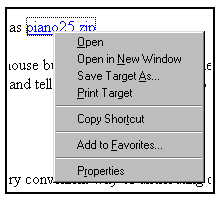
Most browsers allow downloading of programs by using the
right mouse button to bring up a mini-menu. There will then be an option to
"Save target as" (or similar wording).
Try this option now and tell it where on your
desktop machine you want to store the downloaded program.
Help! What do I do with the downloaded ZIP
file?
ZIP files are used because they're highly compressed and
form a very convenient way of distributing complex programs in single-file
form.
Ideally your PC has been set up already with a program to
understand ZIP files, in which case you can just double-click on the file in
your File manager or Explorer program. The 'unzipping' program will then spring
to life and show you the ZIP file's contents.
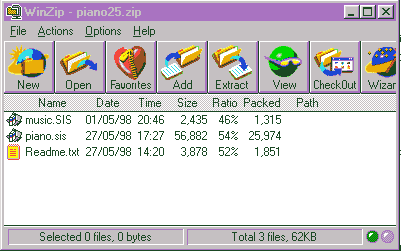
If for any reason your computer gives an error message (or
doesn't do something sensible) when you double-click on the ZIP file, it means
that you need to upgrade it by installing one of the many suitable unzipping
programs. I recommend 'WinZIP', which you'll find on just about every magazine
cover CD in the world.
Once you've got to the stage where you're looking at the
contents of the ZIP file inside WinZIP, you'll notice that there's usually a
text file called README.TXT (or similar). This is usually the installation
instructions for that particular application. Double-click on this to bring it
up on screen and read it. If the program sounds like something you want
to try out, select all the entries in WinZIP and click on 'Extract' to unzip
them to a suitable folder on your hard disk.
Help! I've unzipped a Psion or Symbian program
into a folder. What do I do next?
You did read the README.TXT file,
didn't you? Hopefully the author will have explained what to do within!
If you have PsiWin 2.1 or later and the application is a
modern .SIS (the file extension used for EPOC Install) file, just double-click
on it and you'll be fully installed in seconds. If there's no .SIS file in
sight, you'll need to copy the files across to your Psion the old-fashioned
way. A few notes about transferring files using PsiWin:
- Make sure you're copying the files into the right
directories(!)
- PsiWin 1.x users should hold the Control key
down throughout drag and drop operations, to force copying (not
'converting', which will corrupt the files).
- PsiWin 2.x users can achieve a similar effect by doing
the drag and drop operation with the right mouse button instead. This
will bring up a mini-menu from which "Copy" can be selected.
(There's a lot more about shareware installation on my
special Training CD-ROM, by the way, and of course the
3-Lib/Palmtop CD series itself contains thousands of
up-to-date shareware programs to help save your phone bill)
Above all, don't be put off by all these
instructions, the installing process only takes a few seconds once you know
what you're doing. And familiarisation with program files and their locations
can be a very good skill to own. Just as with a car you'd make a point of
learning how to drive, where to put the petrol, oil, brake fluid, how to change
a wheel etc, think the same way about your PC and palmtop computer. A little
knowledge and confidence gained now will stand you in good stead when a 'wheel
comes off' in the future! |

 Home
Home Training/Support